

Character workflow
How to Keep the Same AI Character in Different Images
You have a character image you like. To use that character again, save the image as a reference, select it for each new scene, and check the result against the original. Here is how to do that in Pixfy Studio.

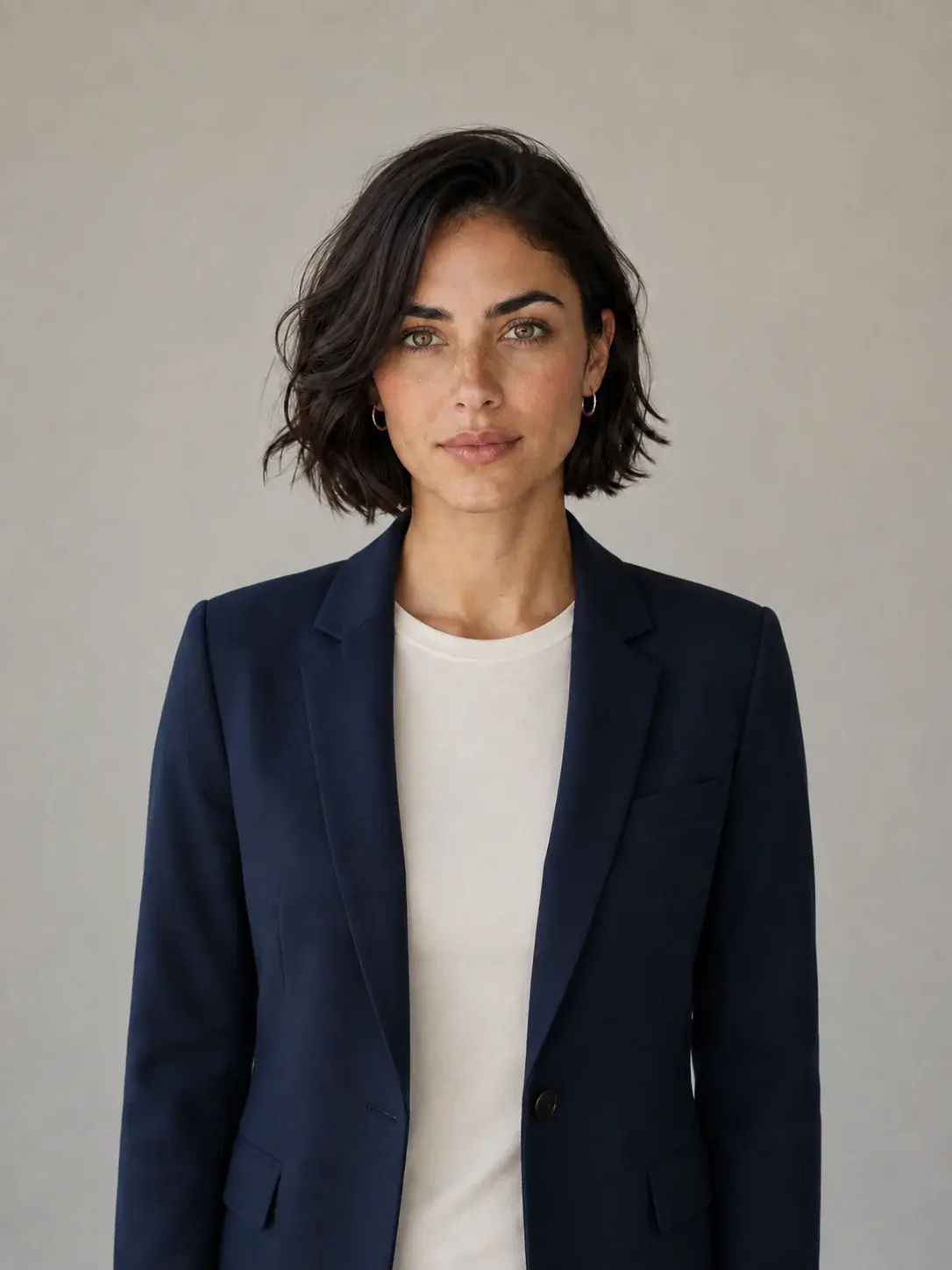
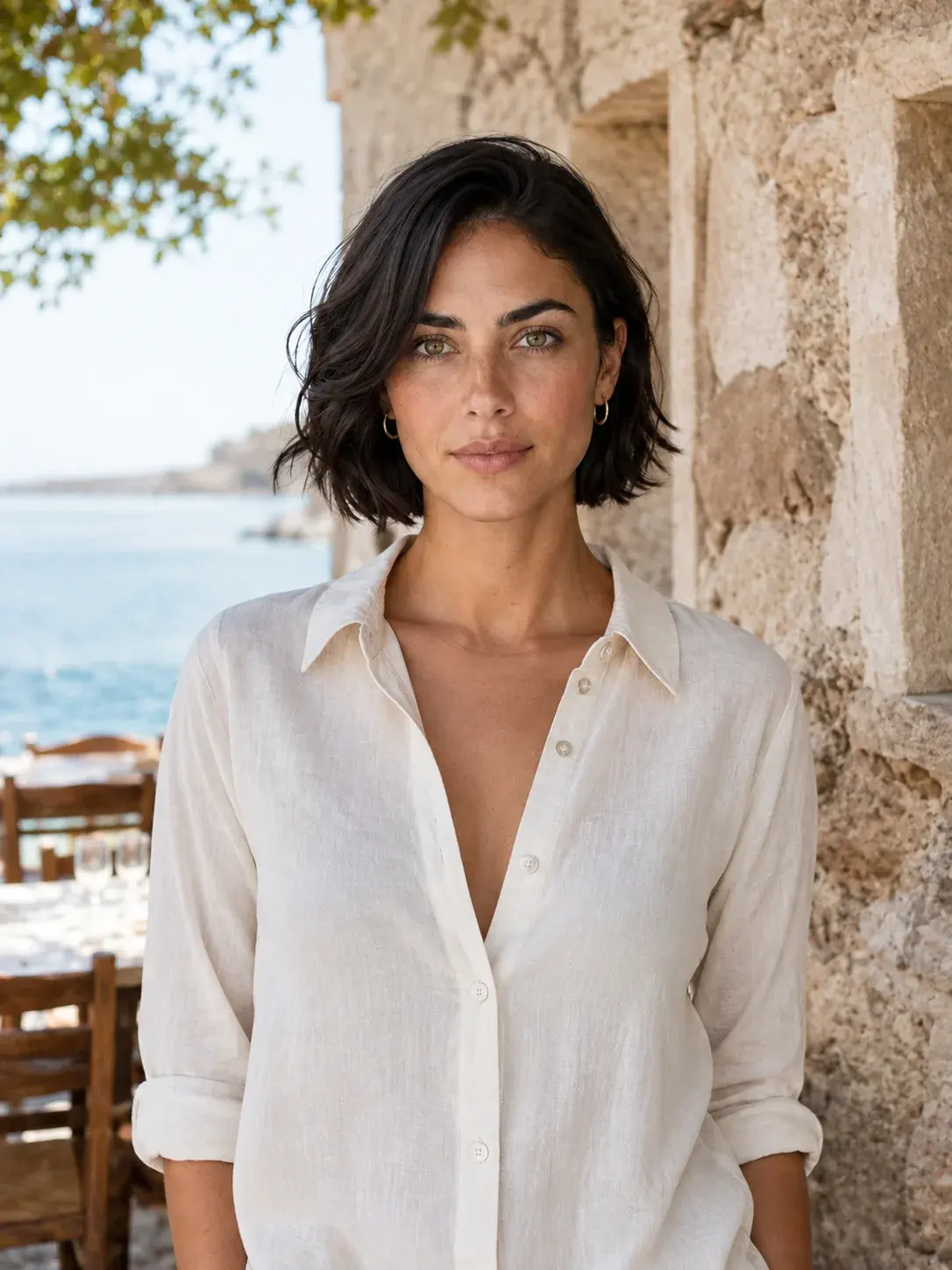
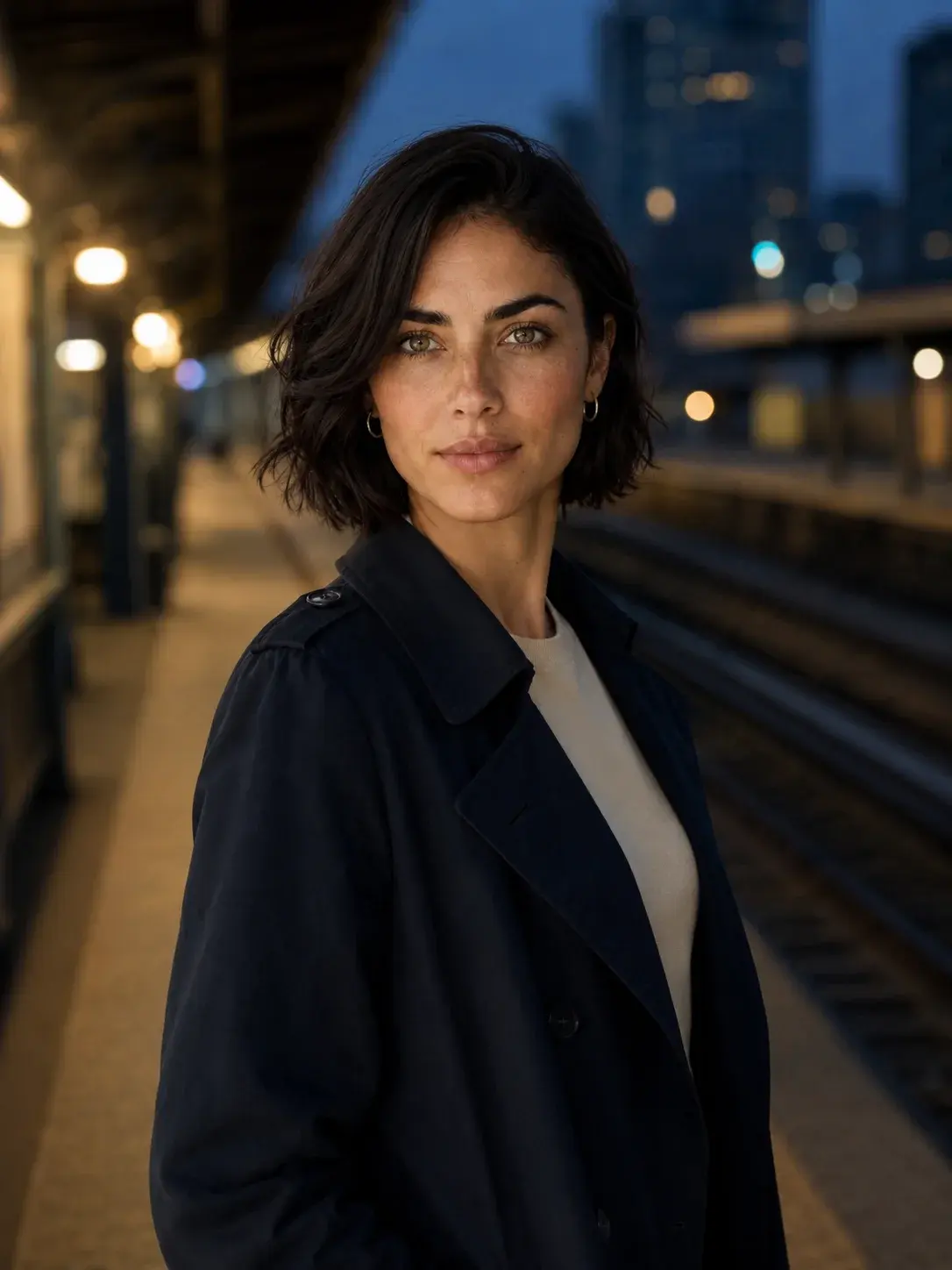
Mira is a pre-generated AI example. These images illustrate the goal; they are not results from a live run of this tutorial. Results vary with the reference and request.
1. Choose one clear reference
Use the existing image of the character you want to keep. It can be a photo, original artwork, or an image you created in another AI tool. Choose a reference where the face and distinctive features are easy to see.
- Prefer a clear, unobstructed face over a tiny face in a wide scene.
- Pick the appearance you want to return to, rather than a variation you already think looks wrong.
- Keep the original image available so you can compare later results.
In this example, Mira’s short dark hair, freckles, and facial features are the visual reference. Her clothes and surroundings can change between images.
No character image yet? Use Describe a character to create one, then explicitly confirm the reference you want to keep before starting a collection.
2. Save the image as a base model
In Pixfy, a base model is the saved subject you choose for future images. For this workflow, it is your character and its original reference image.
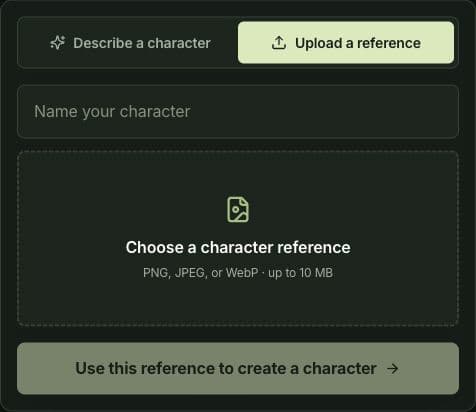
- Open the character creation form and choose Upload a reference.
- Give the character a name and choose its reference image. The upload accepts PNG, JPEG, or WebP files up to 10 MB.
- Sign in when prompted. Review the image, then choose Use this reference to create a character.
Uploading an existing reference does not require generating a new portrait. If you use the description route instead, review the displayed generation cost before submitting.
3. Describe the next image
Open your saved character in Studio. Choose New collection, keep that character selected, and describe the picture you want to make. Check the credit cost beside Generate image before clicking it: this action starts generation.
Start with one clear change. A new outfit against a simple background makes the result easier to compare with the original.
Example prompt: change the outfit
Use the same character from the reference image. Dress her in a navy blazer over a white T-shirt, against a neutral studio background. Preserve her recognizable facial features, short dark hair, and freckles.
Example prompt: change the setting
Use the same character from the reference image. Place her beside the sea in daylight, wearing a light linen shirt. Preserve her recognizable facial features, short dark hair, and freckles. Change the setting and clothing.
Replace the character details and scene with your own. These are suggested prompts to try, not the recorded prompts used to produce the gallery above.
Pixfy uses the saved original subject reference when generating with your character. You do not need to re-upload that image for every request. A collection can also include a confirmed series reference; avoid assuming the newest output should replace your original character reference.
4. Compare the result with the original
Before continuing, look at the original and the new image side by side. Does the character still look recognizable to you?
- Face: compare the face shape, eyes, nose, and mouth.
- Distinctive features: check freckles, marks, hairstyle, and other details you wanted to retain.
- Requested changes: check whether the outfit or setting changed as intended.
A changed pose or different lighting can make comparison harder. If you are unsure, try a simpler request before building a long series. Reference images help guide the result, but they do not guarantee identical appearance in every image.
5. Keep the collection going
New variations are saved automatically to your base model and its collection. Check that the result appears in your collection before leaving; if saving fails, resolve the displayed error first. You do not need to promote every new image into a new character reference.
For a fresh scene using the character, choose Create with subject. To work from an existing image’s scene and composition, use Create from image. To change that particular image, use Edit image. These are different starting points, so choose the one that matches your next task.
Next time, open Studio, select your character, and use Image collections to return to the series. You can keep working there or start a new collection with the same base model.
Want to look around first? Explore the public Studio examples. Browsing an example does not generate an image. Choose Use this base model and sign in when you are ready to copy its reference into your account.
If the character looks different
| What you notice | What to try next |
|---|---|
| The face is difficult to recognize. | Compare with the original. Try a clearer reference where the face is larger and unobstructed. |
| Too many features changed at once. | Simplify the request. Try changing only the outfit or only the setting first. |
| A later image looks like a different person. | Return to the saved original subject. Avoid using an already-drifted output as your new character reference. |
| The next scene inherits details you did not want. | Check the creation mode and the reference images shown for this request. For a fresh scene, use Create with subject and describe the intended setting. |
These are troubleshooting steps, not guaranteed fixes. Each new generation uses the credits shown before submission. Check the result and your request before choosing to generate again.
Ready to make your next image?
Start with a reference you like, save it once, and use your next request to describe what changes.